
Award Winning Virtual Instrument Plugins - EastWest Sounds
New Releases
Most Popular


FEATURED


Vocals
Orchestral
Drums and Percussion
World and Traditional
Guitars and Bass
Synth and Effects
WHO COMPOSES WITH
EASTWEST?
Having new sounds at my fingertips is always an inspiration and these EastWest virtual instruments have plenty of great sounds to choose from.

James Newton Howard
The Hunger Games, Fantastic Beasts, The Bourne Legacy, A Series of Unfortunate Events
If you're lucky, the tools themselves will inspire you. It looks - and sounds - like EastWest does just that with every new virtual instrument they release.

J.J. Abrams
Director: Star Wars: The Rise of Skywalker, Star Trek, Lost
EastWest virtual instruments are a unique and valuable tool, and have become a key component of my writing, recording and producing process.

Zedd
Producer: Lady Gaga, Ariana Grande, Katy Perry, Shawn Mendes
EastWest virtual instruments have become an important part of my sonic template. I am using EastWest Pianos and Silk in my scores and I am using Stormdrum right now!

Danny Elfman
Dumbo, The Grinch, Fifty Shades of Grey, Justice League, Alice Through the Looking Glass
The entire line of EastWest virtual instruments are an essential part of my composing rig. The sounds are impeccably captured while the ease of use of the software makes the instruments top of their field.

Brian Tyler
Thor, Iron Man, The Fast and the Furious, Crazy Rich Asians
EastWest virtual instruments have enjoyed an invaluable place in my palette for many years both in the mock up and final phase, these sounds offer absolutely stunning quality, fidelity, and musicality.

Jeff Beal
House of Cards, Blackfish, Rome
EastWest virtual instruments have that rare ability to inspire creative thinking. Always something I want out of sounds to lead me somewhere, to let myself go.

Thomas Newman
Castle Rock, Passengers, Spectre, Bridge of Spies, Finding Dory, Skyfall, The Help
EastWest Pianos are the best virtual instruments available today. The recording quality and playability are fantastic, faithfully reproducing the resonances of a well tuned piano.

David Newman
Green Eggs and Ham, West Side Story, Girls Trip, Night School, Tarzan, Ice Age
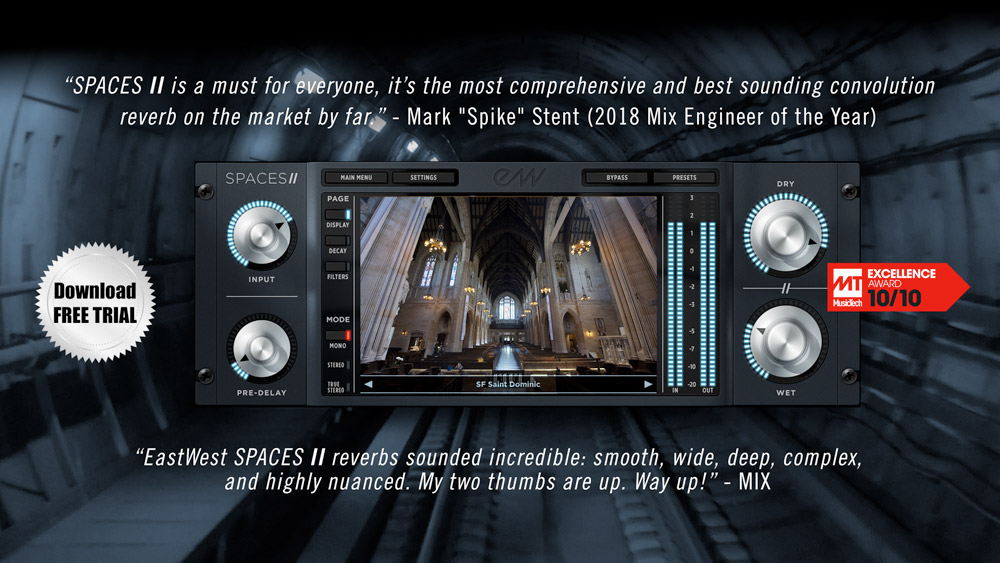
EastWest's SPACES II is my new go to reverb, it's absolutely the best reverb plug-in on the market, and I use it in most of my mixes.

Mark "Spike" Stent
Mix Engineer of the Year: Ed Sheeran, Coldplay, Lady Gaga, Muse
I am a big fan of EastWest virtual instruments. Their collections contain generous sound palettes with great attention to detail.

John Powell
How to Train Your Dragon, Solo: A Star Wars Story, Jason Bourne, Rio 2, Shrek
EastWest has gone the extra mile to provide stunning quality acoustic piano character - the whole collection is superb!

Herbie Hancock
14 Time Grammy Winning Pianist & Composer
EastWest's instruments jump into my tracks, finding places for themselves. Their richness make combinations of style and sound so engaging to work with.

David Kahne
Producer: Paul McCartney, Miley Cyrus, Lana Del Rey
I depend on the quality of these instruments to finalize the ideas with directors and producers. Sometimes a client will ask, “when did you record this orchestra?” - after hearing a mockup using EastWest orchestral instruments.

David Campbell
Joy, World War Z, Adele's 21, Muse's 2nd Law, Pearl Harbor, Armageddon
EastWest's wide range of instruments allow absolute control over the emotive elements of my music. Each instrument is cleverly made to complement another making it an essential arsenal in any composer's collection.

Mac Quayle
Mr. Robot, American Horror Story, Pose, Feud, The People v. OJ Simpson
Inspiration hits you the moment that you begin to look through the EastWest collection. Every instrument has a polish to its production that makes it evident how much care has gone into its creation. They set the bar high.

Alex Lacamoire
Hamilton, The Greatest Showman, Dear Evan Hansen, In The Heights
The attention to detail in the scripting and recording of the sounds make all of their instruments extremely playable and accurate sounding. I’m using them on a "Star Trek Discovery" cue right now!

Jeff Russo
Star Trek: Discovery, Fargo, Legion, The Night Of, Altered Carbon
EastWest is the Fort Knox of secrets for the music industry; I'm very lucky to have these virtual instruments in my composing and production arsenal.

Brody Brown
Grammy-Award Winning Producer and Songwriter for Bruno Mars' 24K Magic
EastWest’s ComposerCloud subscription offers a collection of top notch professional instruments. I’m really blown away by the sheer magnitude and depth of it all!

Jordan Rudess
Virtuoso keyboardist: Dream Theater, David Bowie, Enrique Iglesias
EastWest's ComposerCloud subscription has become the solution I've always dreamed of. The combination of its world-class virtual instruments and stunning software makes the platform an absolute dream to use.

Ethan Popp
Grammy & Tony Award Nominated Producer: School of Rock on Broadway, Hedwig, Motown the Music, Rock of Ages
The outstanding EastWest Gypsy and Silk libraries inspire my writing process - they are unequivocally some of the best sounding virtual instruments available!
Germaine Franco

Tag, Coco, Dora the Explorer
I rely on EastWest virtual instruments for my work, they are the most natural sounding and best programmed virtual instruments out there.

René Dupéré
KA, Mystere, Alerigia, Cirque du Soleil
This is not just a virtual piano collection, it's a masterpiece. It's love at first touch. When I first heard it, I had to play it, and I fell in love - WOW!!

Teddy Riley
Producer: Michael Jackson "Dangerous" and "Invincible"
As musical director/keyboard player for Paul McCartney, I need the best sounds available, EastWest virtual instruments give me that and are an essential part of my set-up.

Paul "Wix" Wickens
Musical Director/Keyboards: Paul McCartney
EastWest's The Dark Side is exactly what I've been looking for in a moody, expertly distorted virtual instrument. I'm using it everyday in my video games music scores.

Rod Abernethy
Rage, Dead Space, The Hobbit
EastWest's SPACES II is top-notch. Its ability to quickly and creatively recreate hundreds of different environments makes it one of the best reverbs on the market.

Benjamin Rice
Grammy Award-Winning Producer for Lady Gaga's "Shallow"
Hollywood Orchestra is easily the most versatile orchestral collection out there, from sweeping melodies to aggressive passages. I use it on all my orchestral productions!

Wilbert Roget II
Call of Duty: WWII, Mortal Kombat 11, Lara Croft and the Temple of Osiris
EastWest's virtual instruments go beyond well recorded samples, and give you that ephemeral magic at your fingertips that inspire musicians.

Laura Karpman
HBO's Lovecraft Country, Marvel's What If...? Halo 3
GIVE THE
GIFT OF MUSIC
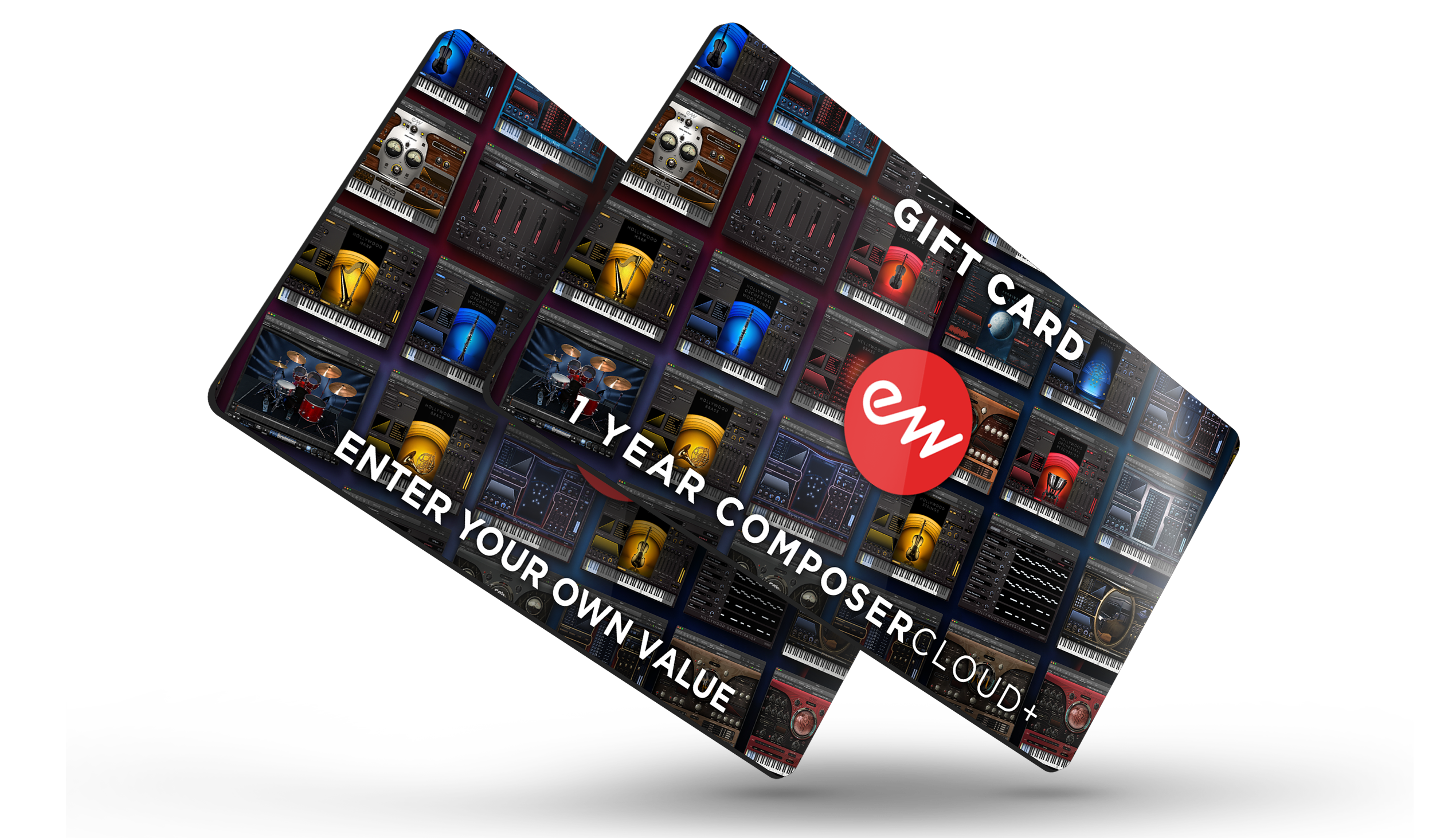
Gift Cards are the perfect solution when you just can't find the right gift or you're short of time. Gift Cards can make a perfect present for friends, family, and business associates. EastWest Gift Cards can be redeemed solely at soundsonline.com.